Choose a product photo
Add your JPG, PNG or WebP image. Your original background is removed and replaced with white, so you can focus on the product.
Change your photo background to white: remove the original backdrop, place your product on clean white, and adjust its size and position. Download a finished JPG or PNG for a shop listing, catalog, or simple portrait.
White replaces the original background; it is not added over the entire photo. Check pale products and fine edges before downloading. Adjust framing to suit your listing; marketplace approval is not guaranteed.
Create a white-background photo ↗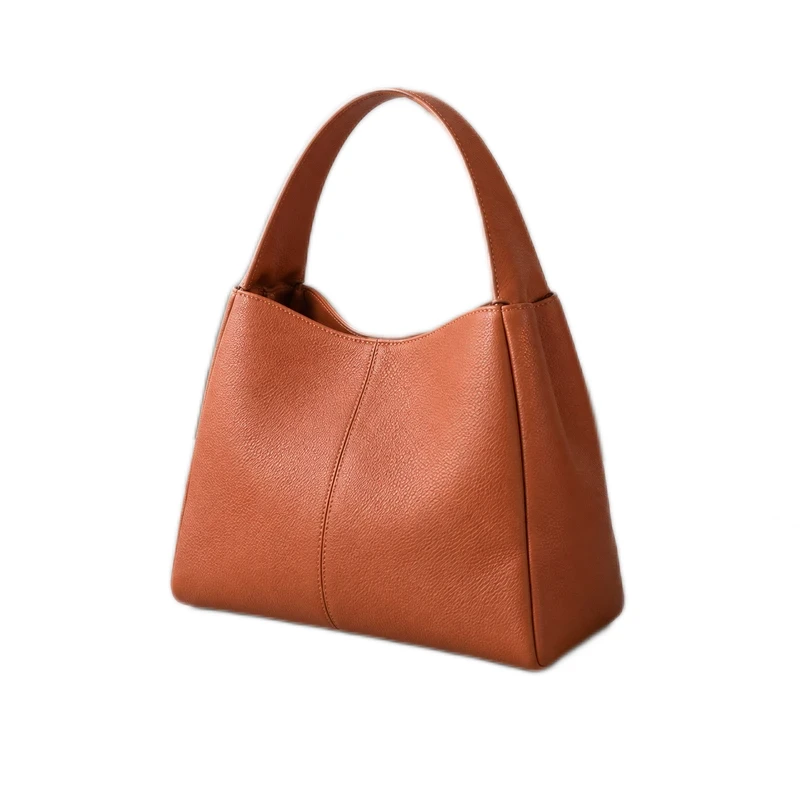
 BeforeAfter
Drop your image here, or choose one.
JPG, PNG, WebP · Up to 10 MB each · 5 at a timeYou can also paste an image Ctrl / ⌘ VClear away the room behind it. Give your item a simple white backdrop and space to stand out.
 BeforeAfter
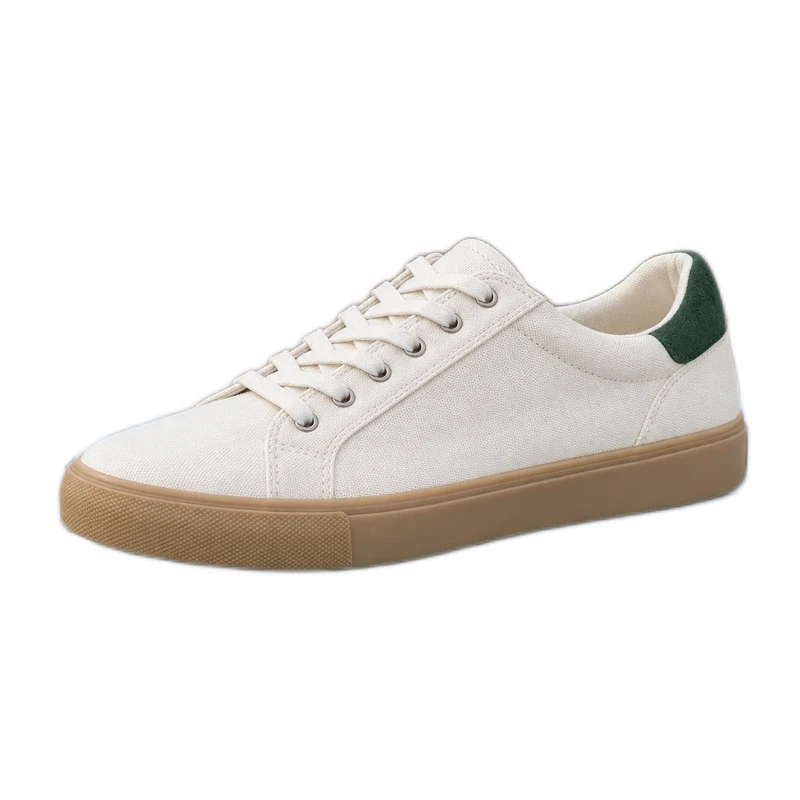
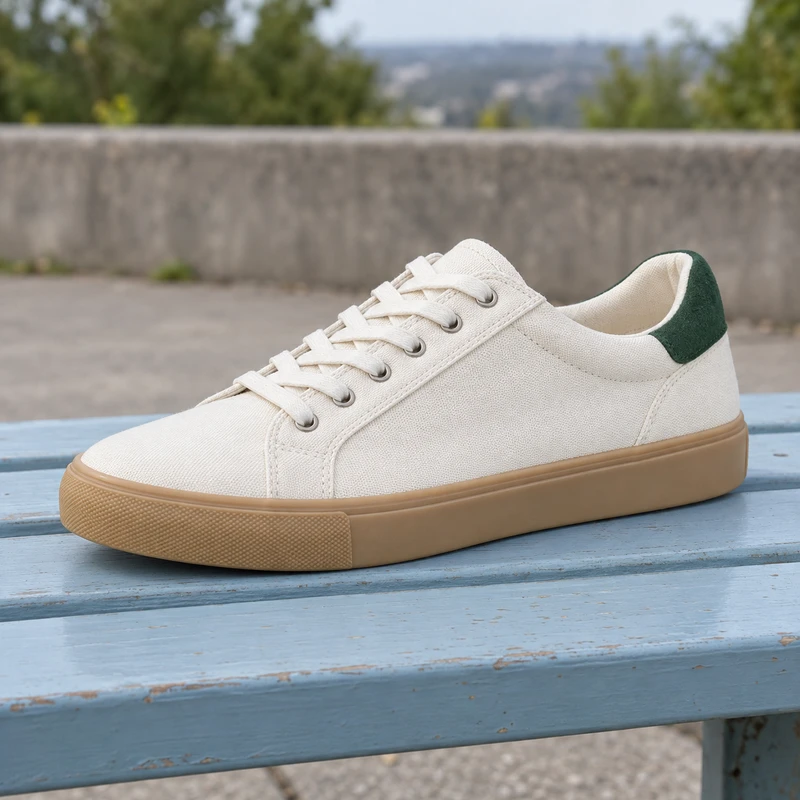
Check light-colored edges against the white background. Restore any missing detail, then adjust the product’s position and the space around it before downloading.
White background selected. JPG ready to download.
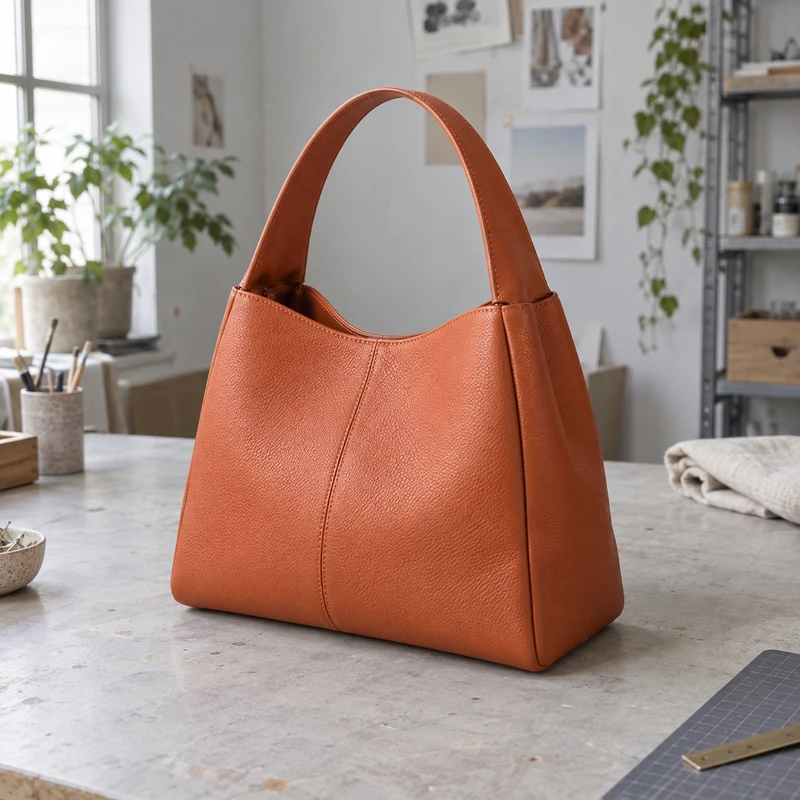
A simple backdrop brings the attention back to your products. Try the handbag example: use Subject to enlarge a small item or move it into the center, leaving white space around the edges. Crop canvas sets the final frame. Review each item at a similar scale; a white background alone does not match their size.
A whole collection? Batch remove background →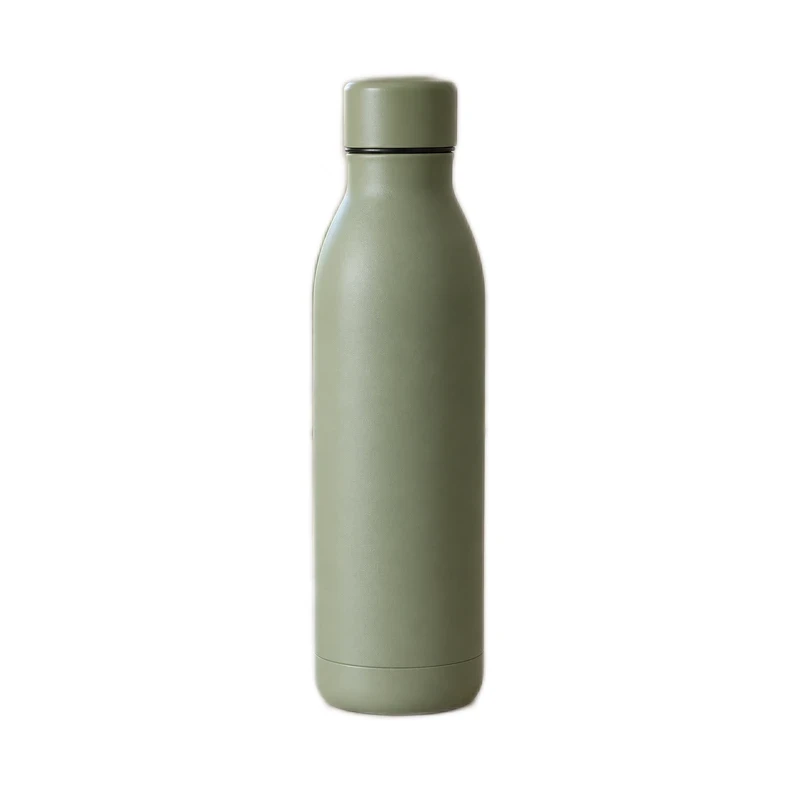
Choose a white background for a finished photo. Need to place the subject over another design instead? Save a transparent cutout.
Create a transparent PNG →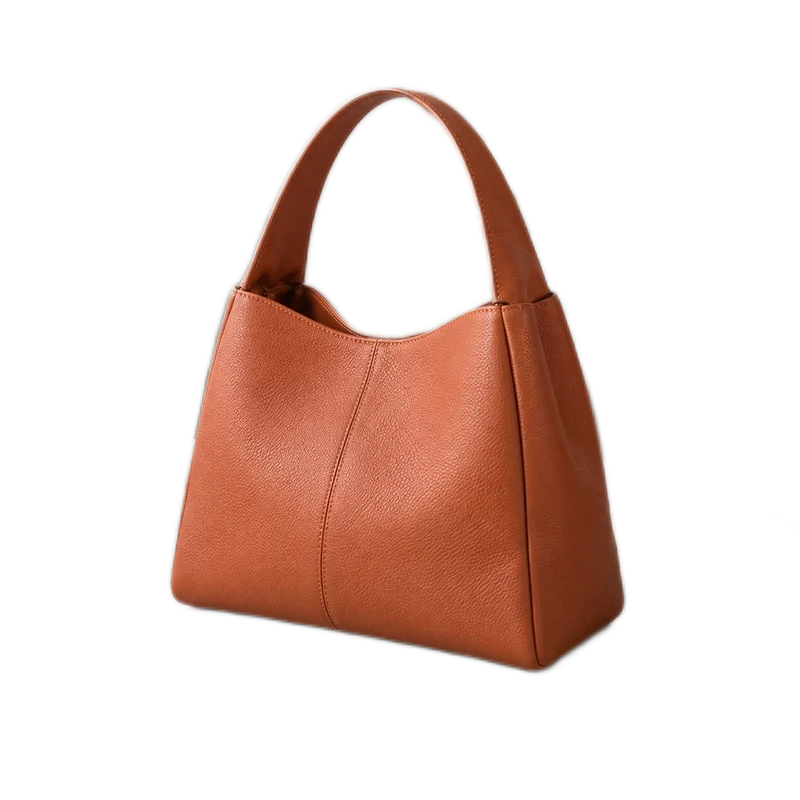
Add your JPG, PNG or WebP image. Your original background is removed and replaced with white, so you can focus on the product.
Check the edges, move or resize the subject, and adjust the space around it. Use a similar angle and framing for other photos in your collection.
Save as JPG or PNG, free without a watermark. Check the size and presentation requirements of your listing before publishing.
It removes the original background and places the remaining subject on solid white (#FFFFFF). This page starts with white and JPG selected for product photos, catalog drafts, and simple portraits.
No. White is a visible color in the exported image. Transparency is empty space that reveals the design underneath. Use the transparent PNG tool if you need a cutout with no background. Create a transparent PNG instead →
Yes. Use Subject to move or resize the cutout within the canvas. Crop canvas changes the final frame; Crop subject trims only the cutout. The tool does not automatically standardize every product to the same dimensions. Resize the finished product photo →
Review pale edges carefully. Restore can bring back areas removed by the model, and Erase can clean up leftover background. The tool does not relight the product or generate a contact shadow.
No. This tool makes a white-background image, but each marketplace and category may have other requirements. Check your listing requirements for dimensions, framing, permitted text, and product presentation. Plan product photo framing for your shop →
JPG is a convenient compact format for finished product photos. PNG preserves lossless pixels and is useful for further editing. Both have a solid white background while white is selected; multiple ready images can be downloaded as a ZIP.
Practical guides for preparing product photos for your shop.
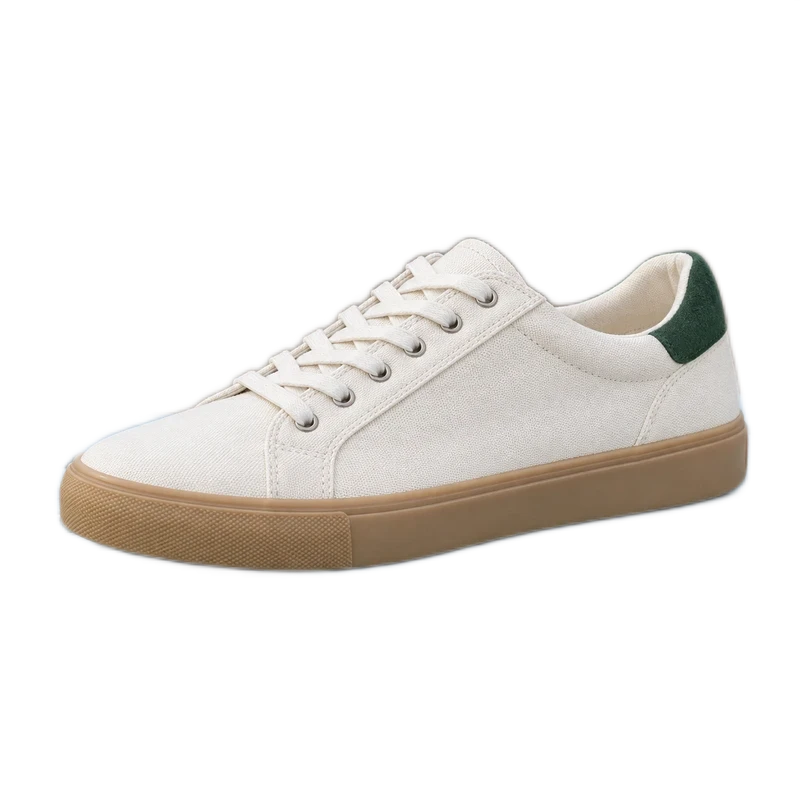 Edge detail
Remove a white backdrop while protecting pale product edges, laces and texture. Use contrast checks, local mask corrections and careful PNG or JPG export.
Read the White products guide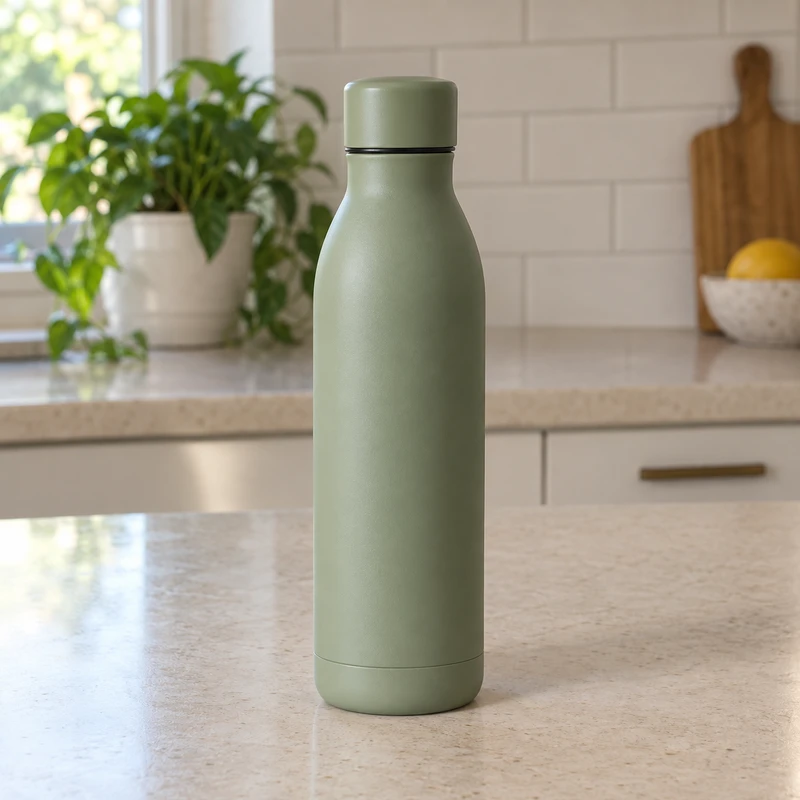
Create a consistent product photo set with a shared background, canvas ratio and framing. Review individual cutouts and export the latest batch settings.
Read the Batch workflow guideOriginalWhite backgroundMake white background photos for eBay while preserving the item’s condition. Review pale edges, export a finished JPG, and prepare multiple listing photos in a batch.
Read the eBay guideStart with your own photo. Download your results for free, without a watermark.