
DESKTOP BATCH EDITING. LESS REPETITION.

Batch remove background

Use this free batch background remover to remove background from multiple images in one workspace. Choose your photos together, start bulk background removal once, review each cutout, and download transparent PNGs or matching white-background product photos.

Keep this tab open and your device awake while the batch runs. The workspace shows your device’s current image limit before you add files. Saved batches stay in this browser; download important results before clearing site data.

Choose your batch ↗
Free desktop batch processingNo watermark
  • Start once, process the set
  • Fine-tune individual photos
  • Save your work for later
ONE BATCH. A FINISHED COLLECTION.
Your original photos
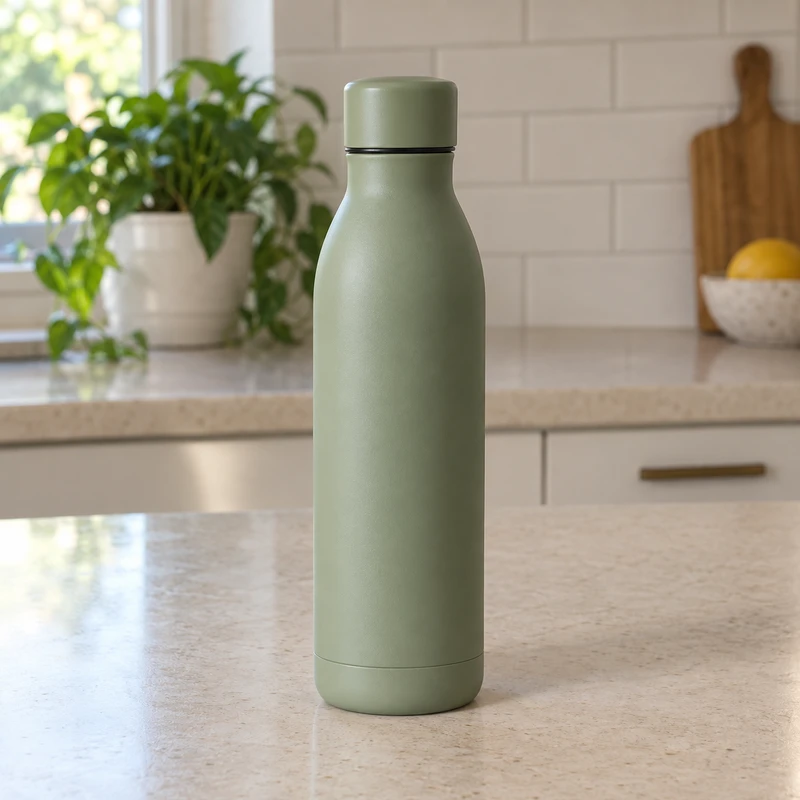
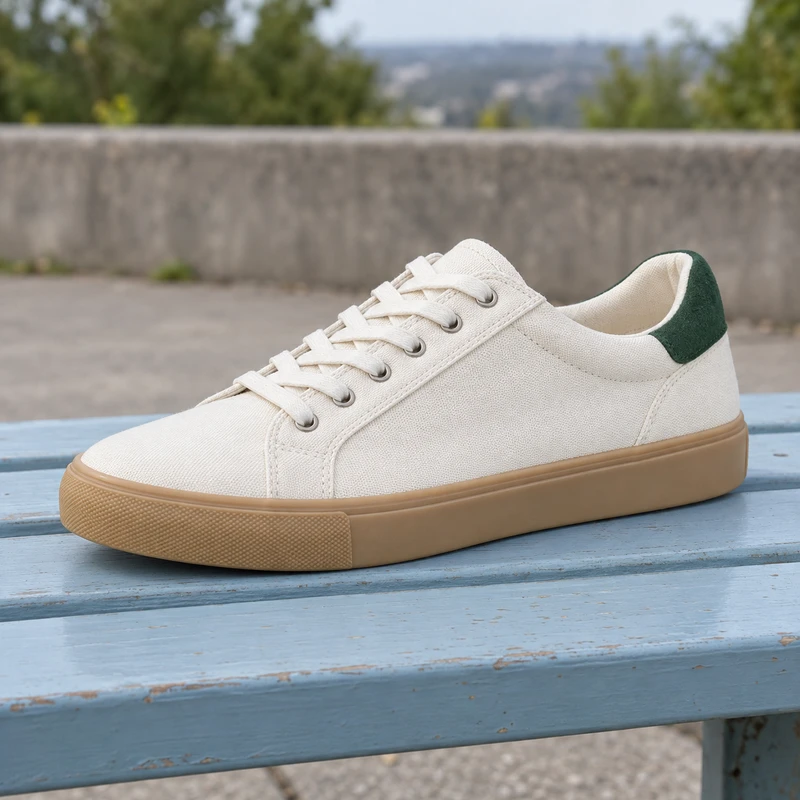
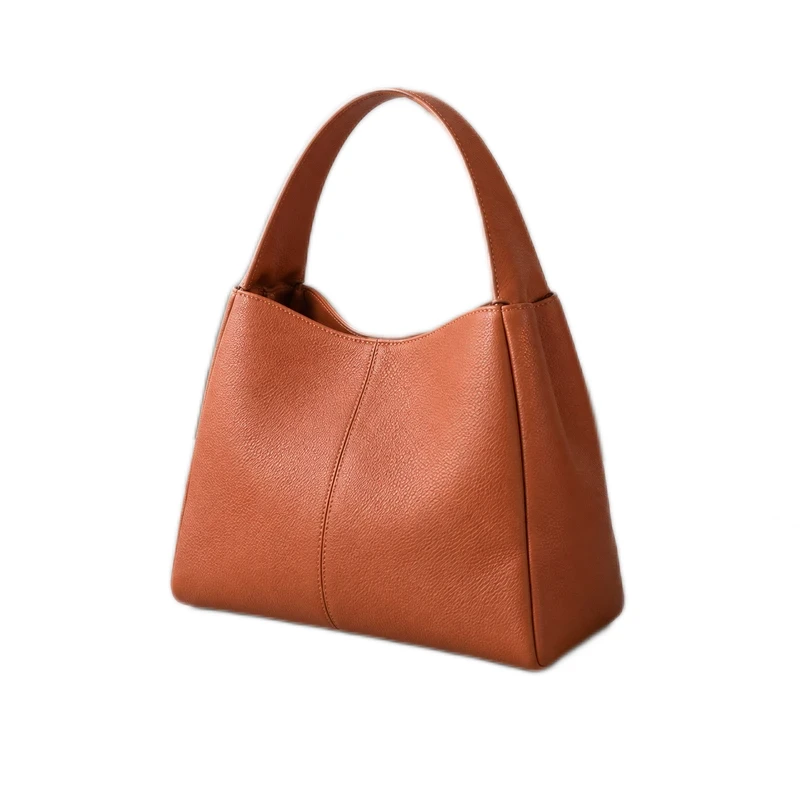
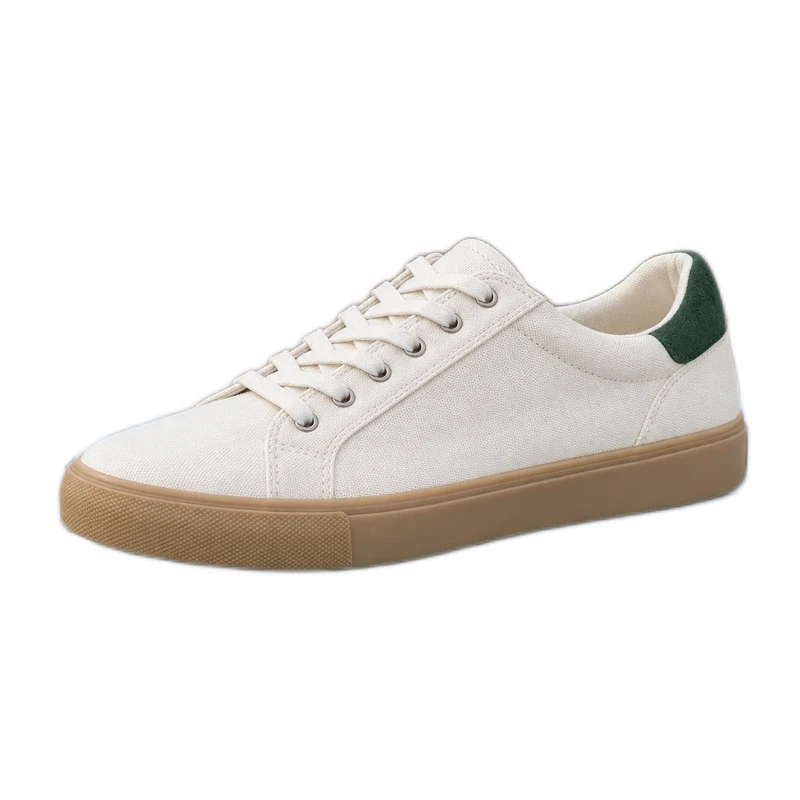
bag before batch background removalbottle before batch background removalshoe before batch background removal
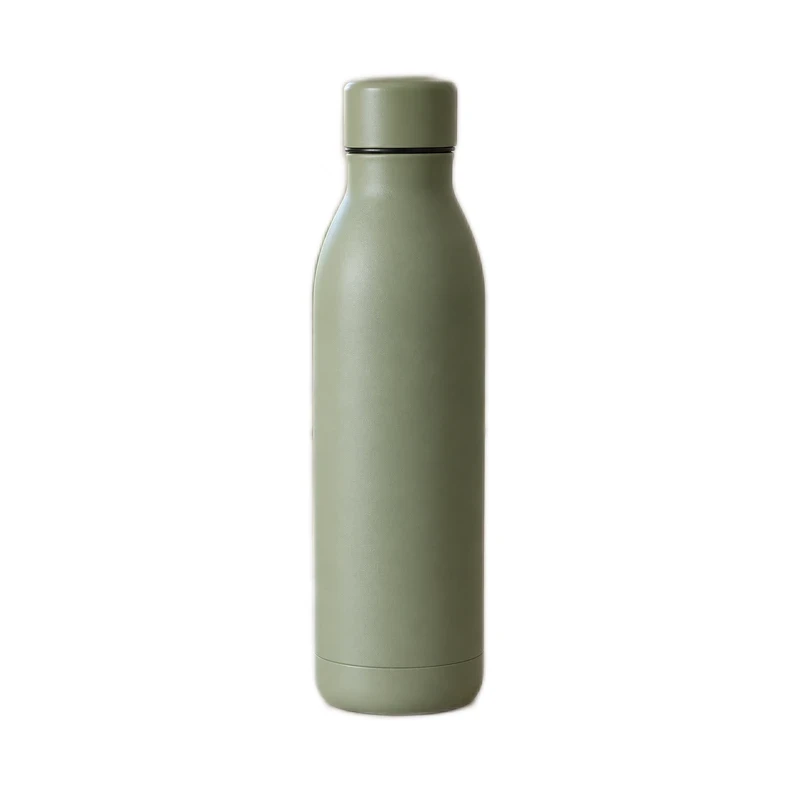
bag with a clean white background after processingbottle with a clean white background after processingshoe with a clean white background after processing
A matching white-background set
YOUR BATCH WORKSPACE

From originals to a finished set.

Free device processing · up to 15 images per batch · one active batch at a time

Saved on this device

Keep this tab open while processing. Saved batches can be reopened in this browser; clearing site data removes them. Download important work as a backup.

Opening your saved batches…

Start with a set of images

Drop JPG, PNG or WebP files. Up to 10 MB each; this device allows 8 MP per image. Files are checked and saved before processing.

ONE SET. FROM START TO DOWNLOAD.

How to batch remove background from images

Follow three sample photos from choosing a background to checking the results and downloading the finished files.

The same three photos, your choice of finish
Your original photos
bag before batch background removalbottle before batch background removalshoe before batch background removal
bag with a clean white background after processingbottle with a clean white background after processingshoe with a clean white background after processing
A matching white-background set
STEP 01

Add images and choose your output

Click Choose images to add JPG, PNG or WebP photos. Keep Transparent and PNG for cutouts, or choose White and JPG for product photos. If you change these settings, choose Every image in this batch under Apply to, then click Apply & reprocess.

Try the handbag, bottle and sneaker sample. Switch the preview between white-background photos and transparent cutouts.
STEP 02

Remove backgrounds and review

Click Remove backgrounds to start the batch. Keep this tab open and your device awake. Use Compare to check a finished photo, or Edit image to refine its edges and framing. Click Save & return after editing.

In this example, choose a photo below the preview and drag across it to compare the original and the result.

STEP 03

Prepare and download your images

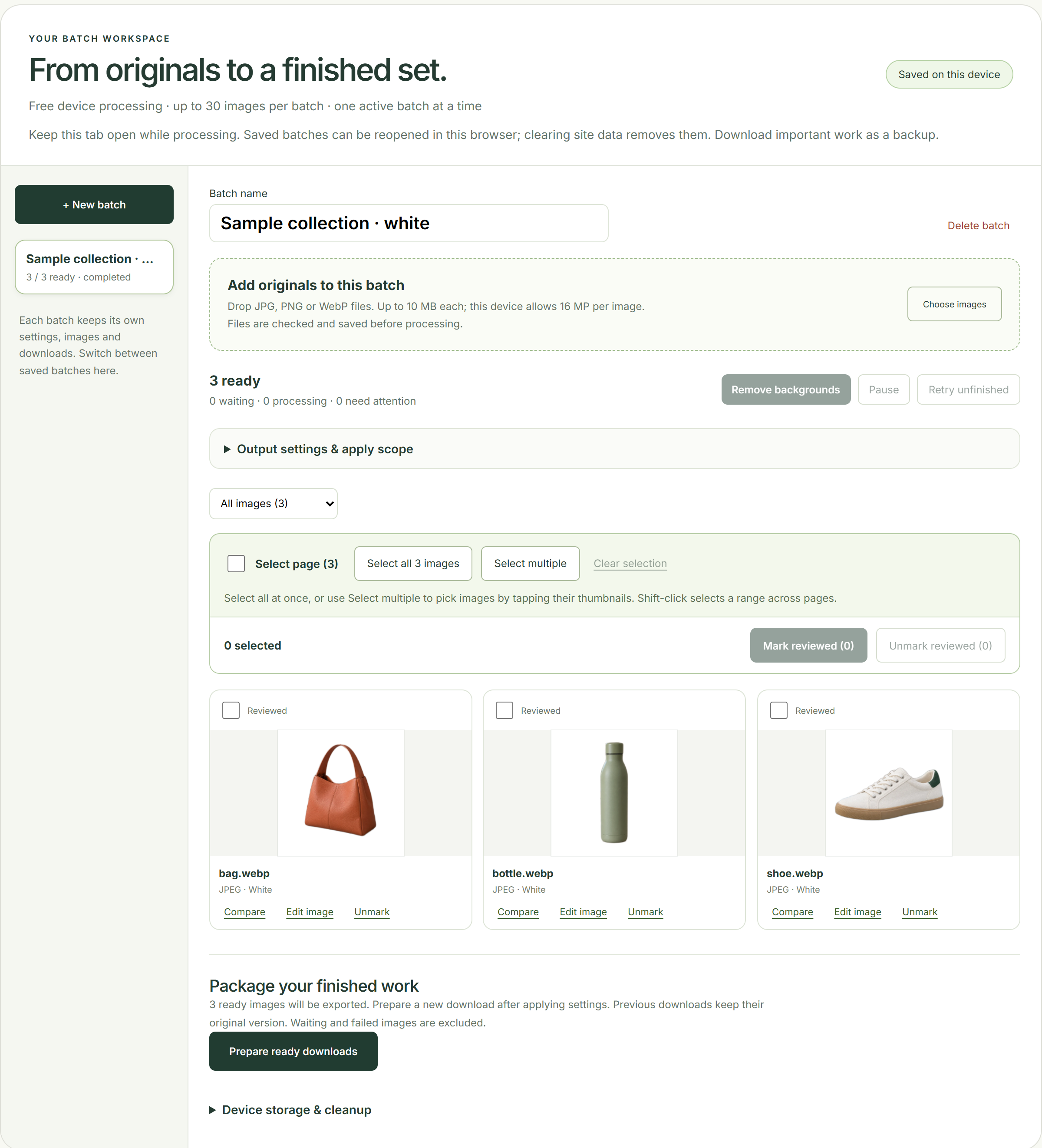
Click Prepare ready downloads, or select photos and click Prepare selected downloads. Once the files are ready, click each download file to save it. Larger sets may be split into several ZIP files. After changing a photo or its settings, prepare new downloads to include those changes.

The sample ZIP contains three white-background JPGs, each 800 × 800, without watermarks.

Loads these three originals into a new batch. Start when you’re ready.

Example: three photos ready to download

The three sample photos have been processed with white backgrounds and reviewed. Open the screenshot to see the results and the Prepare ready downloads button up close.

Batch background remover example with three white-background product photos ready to downloadView full-size example

RemoveBG.Studio Batch Background Removal FAQs

Can I remove backgrounds automatically on my desktop?

Yes. Add your photos, choose the output and start the batch once. The tool works through the waiting images automatically. Keep this browser tab open and your computer awake while it runs, then review and download the ready results. No desktop app installation is needed.

Is batch background removal free and without a watermark?

Yes. Processing on your device and downloading the results are free, with no watermark. This batch workspace does not use paid cloud credits.

How can I use this bulk product photo background remover for my shop?

Yes. Add a set of product photos, apply a shared white or custom background to the intended images, and review each result. Adjust framing inside each image editor where needed. Download the ready set or a selected subset, then check your shop’s image requirements before uploading. A shared background does not automatically standardize product size or guarantee marketplace approval. Follow the product collection consistency guide →

How many images can I add to a batch?

The workspace shows the limit for your current device. Standard devices can hold up to 30 images per batch; devices with limited or unknown resources use smaller batches and image-size budgets. One image is processed at a time, so the entire set is never decoded at once. Inputs must be JPG, PNG or WebP up to 10 MB. Available storage can lower the allowance further.

Will editing one image change my other images?

No. Brush corrections, cropping, canvas dimensions, subject placement, materials and the background control inside the editor affect only the open image. Output presets have an explicit scope: newly added images, selected images, or every image in this batch. Existing images change only when you choose that scope and apply it.

Can I refresh or close the tab and return later?

Originals, finished cutouts and saved edits are stored in this browser on this device. Reopen this page to find your batches. Local processing stops when the tab closes; an interrupted image may restart when you return. Wait for the saved indicator before leaving. Clearing site data or browser storage eviction can remove batches, so download important work as a backup.

Can I separate ready images from those that need attention?

Yes. Filter by Waiting, Processing, Ready, Reviewed, Needs attention or Cancelled. Mark a result as reviewed after checking its edges. Retry unfinished images without running finished images again, or export a ready subset while other images wait.

What happens when I select too many files?

The full selection is checked before it is added. If it exceeds available image slots, input budget or storage allowance, the selection is rejected with an explanation. No files are silently omitted. Choose a smaller selection or create another batch.

How do I download a large batch?

Prepare the ready results or a selected subset. Downloads are split into smaller ZIP parts to limit memory use; a result larger than the part budget is offered individually. Each saved download captures image settings at that moment, so later edits do not change an already prepared package.

Are my images uploaded to a server?

This workspace processes and saves images on your device. The model is downloaded when needed, but your originals are not uploaded for background removal. Local batches do not sync to other devices. Cloud processing is not enabled in this workspace.

Will the queue run after I close my browser?

Local processing needs an open browser tab and an awake device. Keep the page open until processing finishes, or return later to continue the saved queue. Browser background restrictions and device sleep may pause execution.

Need smaller files for shop uploads? Download your reviewed photos, then compress them together and compare the actual sizes. Compress the finished image set →

Your next batch starts here.

Start with your own photos. Download your results for free, without a watermark.

Choose your batch ↗