Sample design · Make it yours in Design Studio.
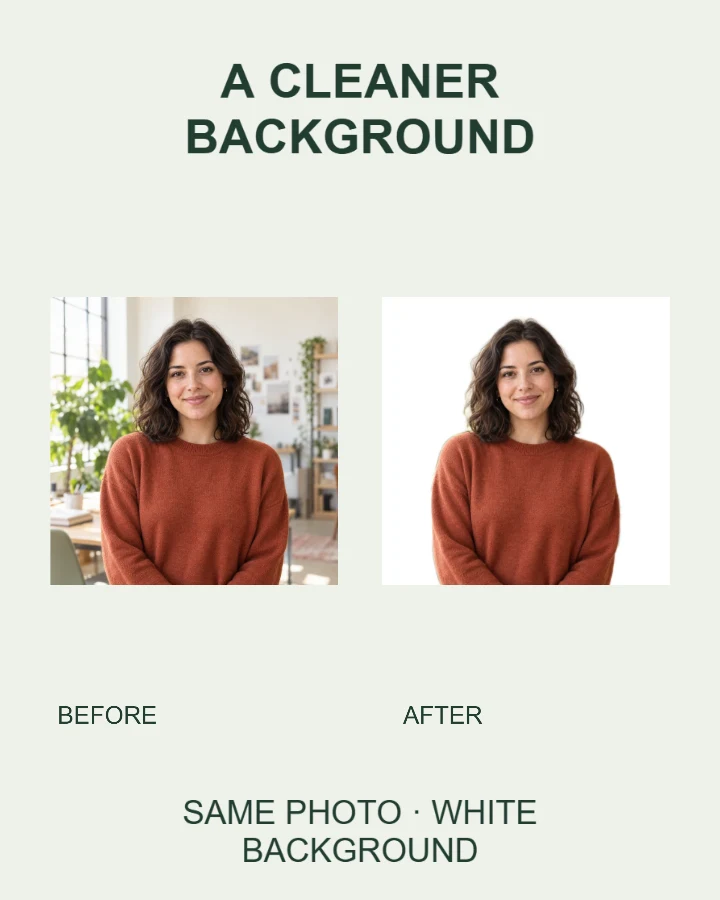
Example photo from RemoveBG Studio. Replace it with your own photo.
Before and after photo template
Create a before and after photo comparison from two real images. Keep the original settings, label each view, and describe the actual change. This example compares a portrait before and after background replacement.
- Image size
- 1080 × 1350 px
- Shape
- Portrait · 4:5
- Save as
- PNG or JPG
Make the message yours
Use clear Before and After labels and describe the actual change. The design does not invent a result or verify claims.
Open this design with your chosen words, style and shape. Replace the example photos in Design Studio.
Invite someone to make their own. This link never includes your photo or message.
Use matching angles and fair lighting
Choose genuine before and after photos of the same subject or place. Similar framing and lighting make the comparison easier to judge. Keep each background unless removing it is the change you want to show.
How to use this photo template
Add the before photo
Keep the original background to show the starting point.
Add the real after photo
Upload the second photo and adjust its crop separately.
Check the comparison
Make sure the labels match the photos, then save or share.
Questions about this design
Does the template create an after result?
No. You supply the real after photo. The sample demonstrates background replacement, not a beauty, health or grooming transformation.
Will backgrounds be removed automatically?
The before photo keeps its background by default. The second slot also keeps its background unless you explicitly choose removal for the new upload. Learn about transparent cutouts →
Can I replace either image?
Yes. Each named photo slot has its own Replace photo and crop controls. The other photo and your words remain in the design.